Who’s gonna win by the end of this year, Surface with Windows RT or iPad (Mini)? Pick up your choice..
Posted By Adikara Putra (Hikaru Yuuki) On In Gadget & Phone | No CommentsInternet Explorer Cannot Connect to the Internet, but Firefox, Downloader Does
Posted By Adikara Putra (Hikaru Yuuki) On In Desktop Application | 18 CommentsYeah, it sucks indeed, when you need Internet Explorer (IE) but suddenly IE cannot connect to the Internet, meanwhile Firefox, downloader like IDM, etc are able to connect. Of course since IE cannot connect, other applications depend on IE’s settings also unable to connect, such as Yahoo Messenger (YM).
Just knew this when this afternoon I tried to log in to YM but couldn’t, I thought I had problems due to Internet connection (slow or unstable connection). But this night when I tried to install Github Windows, an error occured with error message “Error: An error occurred trying to download ‘http://github-windows.s3.amazonaws.com/GitHub.application’.” After time consuming investigation, the cause was IE. Tried to open Google in IE, but no luck. What a weird, why IE unable to open Google while Firefox does able to.
After browsing around, few things that’s worth to try to fix this Internet connection problem in IE are:
Awal mula ketika siang tadi mencoba konek ke YM tidak bisa, saya kira karena masalah koneksi, tapi malam ini ketika mencoba install Github Windows ternyata tidak bisa. Selidik punya selidik ternyata ketika membuka IE, buka ke mbah Google saja tidak bisa. Aneh, padahal dengan Firefox bisa.
Setelah browsing ke sana kemari, beberapa cara yang patut dicoba untuk membenarkan koneksi Internet di Internet Explorer, antara lain:
-
Try using Diagnose/Troubleshoot Problems
First and easiest way, right click on Network icon in System Tray (near clock/volume in Taskbar) and choose Troubleshoot Problems.
-
Scan any malwares(viruses, trojans, worms, adwares, etc) by using anti virus, anti malware
In addition to anti virus such as Kaspersky, anti malware such as Malwarebytes Anti Malware, try also scanning using Hijack This or similar programs to investigate suspected or even dangerous programs.
-
Uninstall Norton/McAffee Anti Virus/Internet Security or similar programs with Firewall
Firewall is really useful to block network attacks, by blocking apps, IP, ports, but if we mistakenly choose to block/disallow important apps,ports, you will not be able to connect to the Internet. It is recommended to use Norton Removal Tool to uninstall Norton apps.
-
Resetting DNS, Winsock, IPv4 & IPv6 configuration
- Open Command Prompt with Run As Administrator, two simple ways:
- if you use Command Prompt frequently, then it will be shown up in Start Menu, just right click and choose Run As Administrator
- type
cmdin Start Menu > Search programs and files, aftercmd.exesearch result shown up, right click and choose Run As Administrator
- In Command Prompt, to reset DNS type
ipconfig /flushdnsand hit Enter - To reset Winsock, type
netsh winsock reset - To reset Internet Protocol, type
netsh int ip reset c:\resetlog.txt - Restart your computer
 [1]
[1]
- Open Command Prompt with Run As Administrator, two simple ways:
-
Disable Proxy
There two ways to disable proxy, through Internet Options and Registry:
- To open Internet Options, in
Internet Explorer > Tools > Internet Options > Connections- For Dial Up (eg. using modem or VPN), in
Dial-up and Virtual Private Network settings click button Settings > uncheck all checkboxes - For LAN (eg. using cable or WiFi), in
Local Area Network (LAN) Settings >uncheck all checkboxes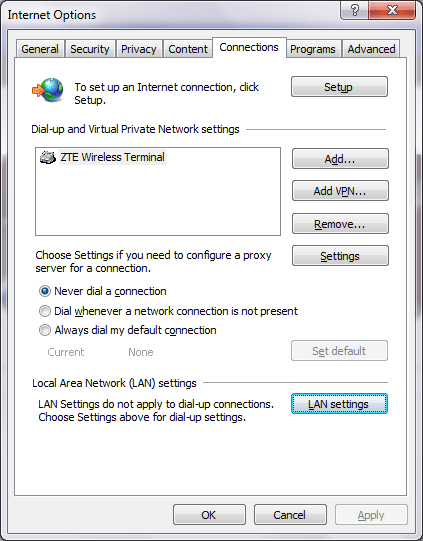 [2]
[2] 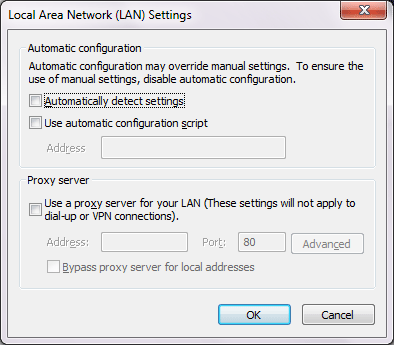 [3]
[3]
- For Dial Up (eg. using modem or VPN), in
- If through Internet Options is not working, try using Registry Editor:
- Close IE
- In Start > Run or Start Menu > Search programs and files, type
Regeditand hit Enter to open Registry Editor - Navigate to the following key
HKEY_CURRENT_USER\\Software\\Microsoft\\Windows\\CurrentVersion\\Internet Settings - Change key name
AutoConfigProxyto something else e.g.000AutoConfigProxy000 - Change the value of
ProxyEnableto 0 - Empty the value
Proxyserver(dont delet the key, just change the value to empty/blank) - Change the value of
MigrateProxyto 0 - Open IE
- To open Internet Options, in
- Use System Restore (not recommended)Use System Restore to restore Windows from your last backup (recently backed up). Remember that programs and their settings/configurations after last backup will be lost and replaced with the ones in the last backup, your documents/data still remain exist.
- Last extreme way and for those who are really desperate, reinstall Windows This last is really really not recommended, to fix one program you are not supposed to reinstall Windows. It’s just like Cara ini jelas sangat tidak disarankan, hanya untuk membenarkan satu program yang mengalami error kita harus menginstal ulang Windows. Ini sama saja dengan membunuh seekor semut dengan bom atom.
Dari cara di atas yang berhasil untuk saya adalah cara Mendisable Proxy sederhana memang tapi terkadang kalau kita tidak tahu atau lupa settingan jadinya ya repot juga. Sehari-hari saya menggunakan WiFi di rumah begitu juga di kantor (bisa kabel atau WiFi), berhubung sekarang menggunakan modem dial-up jadinya settingan yang tepat bukan di bagian Local Area Network (LAN) settings.
Really better than Dropbox? 5 GB storage for free, store & sync file, better file, sharing and security management http://bit.ly/oGAqhk
Posted By Adikara Putra (Hikaru Yuuki) On In Website & Blog | No CommentsReally better than Dropbox? 5 GB storage for free, store & sync file, better file, sharing and security management http://bit.ly/oGAqhk
Updated to WordPress 3.2.1
Posted By Adikara Putra (Hikaru Yuuki) On In My Diary | No CommentsTrying to add post format ‘status’ in WordPress using Twitter Tools when automatically create blog post is enabled
Posted By Adikara Putra (Hikaru Yuuki) On In My Diary | No CommentsMenambahkan post format ‘status’ di WordPress bila ‘automatically create blog post’ dari Twitter Tools diaktifkan
Display Tooltip/Hint Text of Menu Items in Status Bar C#
Posted By Adikara Putra (Hikaru Yuuki) On In Programming @en | No CommentsHave you ever use Windows Explorer or other programs, then you’ll probably notice the hint text in the status bar whenever you hover the mouse pointer on a menu item. This will help user and add application’s usability by providing user support. In C# after we set tooltip/hint text in each menu items, it will not immediately appear in the Status Bar (in .NET it is commonly known with StatusStrip). In Delphi it’s easy to display the hint text in the status bar by assigning handler in Application.OnHint event as follows:
procedure TForm1.ShowHint(Sender: TObject);
begin
  StatusBar1.SimpleText:=Application.Hint;
end;

procedure TForm1.FormCreate(Sender: TObject);
begin
  Application.OnHint:=ShowHint;
end;
Since I’m also relatively a newbie in C# WinForms and doesn’t know the efficient and easier way to display hint text in the Status Strip, the steps that I use are traversing/enumerating each menu items and assign each with event handler on event MouseEnter and MouseLeave if it has a tooltip text.
//constructor Form1
public Form1()
{
    InitializeComponent();
    InitializeMenuHint();
}

private void InitializeMenuHint()
{
    foreach (ToolStripMenuItem item in menuStrip1.Items)
    {
        TraverseMenuItemHint(item);
    }
}
private void MenuHint_Enter(object sender, EventArgs e)
{
    statusStrip1.Text = (sender as ToolStripMenuItem).ToolTipText;
    //bila membuat Status Label di Status Strip gunakan di bawah ini
    //toolStripStatusLabel1.Text = (sender as ToolStripMenuItem).ToolTipText;
}

private void MenuHint_Leave(object sender, EventArgs e)
{
    statusStrip1.Text = "";
    //bila membuat Status Label di Status Strip gunakan di bawah ini
    //toolStripStatusLabel1.Text = "";
}

private void TraverseMenuItemHint(ToolStripMenuItem element)
{
    for (int i = 0; i < element.DropDownItems.Count; i++)
    {
        if (!(element.DropDownItems[i] is ToolStripSeparator))
        {
            ToolStripMenuItem item = element.DropDownItems[i] as ToolStripMenuItem;
            if (item.ToolTipText != "")
            {
                item.MouseEnter += MenuHint_Enter;
                item.MouseLeave += MenuHint_Leave;
            }
            TraverseMenuItemHint(item);

        }
    }
}
UPDATE:
The solution above only works to display the tooltip when the mouse is hovering menu items, when using the keyboard it will not work. Therefore, I make another, a simpler way in order to display the tooltip text in the status bar.
The steps are:
- Create internal class derived from
ToolStripMenuIteminFormusing ToolStripMenuItem
- Add event
Hintthat will be called when the menu item is selected - Create an event handler
Menu_Hintin the Form - Traverse/Enumerate ToolStripMenuItem, when a tooltip text is not empty string, assign event handler Menu_Hint to Hint event
- Change all classes
System.Windows.Forms.ToolStripMenuIteminForminto
.designer.csToolStripmenuItem(from the internal class we create before).
Complete source code like the following
public partial class FormMain : System.Windows.Forms.Form
{
    internal class ToolStripMenuItem : System.Windows.Forms.ToolStripMenuItem
    {
        public event EventHandler Hint;
        protected virtual void OnHint(EventArgs e)
        {
            if (Hint != null)
                Hint(this, e);
        }
        public override bool Selected
        {
            get
            {
                if (base.Selected == true)
                {
                    OnHint(new EventArgs());
                }
                return base.Selected;
            }
        }
    }
    public FormMain()
    {
        InitializeComponent();
        InitializeMenuHint();
    }
    private void InitializeMenuHint()
    {

        foreach (ToolStripMenuItem item in MainMenu.Items)
        {
            TraverseMenuItemHint(item);
        }
    }

    private void MenuHint_Hint(object sender, EventArgs e)
    {
        statusStrip1.Text = (sender as ToolStripMenuItem).ToolTipText;
        //bila membuat Status Label di Status Strip gunakan di bawah ini
        //toolStripStatusLabel1.Text = (sender as ToolStripMenuItem).ToolTipText;
    }

    private void TraverseMenuItemHint(ToolStripMenuItem element)
    {
        for (int i = 0; i < element.DropDownItems.Count; i++)
        {
            if (!(element.DropDownItems[i] is ToolStripSeparator))
            {
                ToolStripMenuItem item = element.DropDownItems[i] as ToolStripMenuItem;
                if (item.ToolTipText != "")
                {
                    item.Hint += MenuHint_Hint;
                }
                TraverseMenuItemHint(item);

            }
        }
    }
}
Block Trackback Spam in WordPress
Posted By Adikara Putra (Hikaru Yuuki) On In My Diary,Website & Blog | Comments DisabledThese recent days, my blog is hit by spam attack, Trackback spam. Just in few days, when I was not at home and was in Jakarta-Bogor for spending my weekend, my blog got so many spam I ever had, up to 2500 (and after few weeks, around 28.000). The Trackback itself actually is good in intention, but petty minded people use trackback spambot to raise up their web rank (which is actually NOT WORKING at all). What the heck Trackback is? what is the benefits and why it can be categorized as spam?
Trackback is one of three linkback methods, the web author can be informed automatically when other people is linking their page to one of the documents (webpages) of that author. This method enable the web author to track whoever link back, reference back to the author’s articles. Thus, when you write a post and somebody else have the same topic with your post, we can get informed if that people link back or reference from your post. In WordPress, Trackbacks appear in comment section (depends on applied theme) and of course if we enable the Trackback itself in the settings.
Unfortunately, such damned people use trackback spambot to keep spamming to blog posts so that their web link will appear in comment section and when search engine crawl to that blog posts that damned web rank will raised up. If you check that web, it has nothing to do nor even related to your blog posts, it is also possible that those are only dead links.
To handle trackback spam in WordPress, we can do some effective ways:
-
Enable Captcha and Akismet in comments
Captcha is able to block spam bots before they can post spam comments, avaiable captcha plugins for WordPress are SI Captcha, reCAPTCHA, etc. While Akismet block comments considered as spam before automatically appear in the comment section so later we can approve or delete it.
-
Enable Simple Trackback Validation plugin
This plugin is effective to block trackback spam, by checking the IP address that send a trackback with the IP address of the original site that trackback link refers to, if the IP address is different then it is considered as spam. This is because the spam bots normally use another computer with dynamic IP address that is different from the trackback web links.
-
Deactitave (disable) trackback or pingback
Trough
Settings»Discussion» uncheckAllow link notifications from other blogs (pingbacks and trackbacks.) -
Enable moderation in every comments, trackback atau pingback.
Every comment, trackback, pingback will need to be approved manually by the administrator or automatically if once ever been approved. Unfortunately this is not effective and efficient because if there are so many comments (tens or hundreds) it will make you tired. This setting is available on
Settings»Discussion»Before a comment appears -
Do not use comment_author_link() for trackback or pingback in Comment template.
Create callback for listing comments in
comments.php:wp_list_comments( array( 'callback' => 'your_list_comment' ) ) function your_list_comment( $comment, $args, $depth ){ //add with your own comment listing, but remember to leave trackback/pingback without comment_author_link() } -
use
rel="nofollow"For every links in comments add an attribute rel=nofollow, as follows:
<a rel="nofollow" href="http://author_link">Author Link</a>
By doing this, Google will not use the link to raised the rank of the target link web.
-
Block hosts through .htacess
This method is powerful enough so that the suspected hosts cannot access our website to send trackback spam, but if the spam bots use the shared/dynamic IP address there will be a lot of IP addresses that is blocked, so that there are possibilities of IP addresses that are not used to send spam anymore are kept blocked. Plugin that provides feature to delete spam and block the hosts are Block Top Spammers. To manually block the host (eg a host with IP Address 38.109.44.141 and 118.96.149.153) add the following lines in the .htacess file in the root directory:
<Files wp-comments-post.php> Order allow,deny allow from all deny from 38.109.44.141 deny from 118.96.149.153 ErrorDocument 403 '<title>Access denied!</title><style><!-- p,address{margin-left:3em;} span{font-size:smaller;} --></style><h1>Access denied!</h1><p>Your IP address has been blacklisted because a larger number of spam comments originated from the same source.</p><h2>Error 403</h2>' </Files> -
Delete or rename
wp-trackback.phpfile in the WordPress root directoryOnce this file is deleted/renamed then trackback or pingback is absolutely disabled.
-
Delete or rename
wp-comments-post.phpfile in the WordPress root directoryOnce this file is deleted/renamed then comments, trackback or pingback is absolutely disabled.
I have tried some, but in the end the one that is effective enough is by activating the Akismet, Captcha, and also the Simple Trackback Validation with Topsy Blocker plugin and finally… bye bye trackback spam!